
How to Sign Your Student Onboarding Agreement Sent via ZoopSign ?
Manish Chaudhary
Nov 18, 2025 2.3 min read
How to Complete ZoopSign for Eduveda Training & Internship Program
What is ZoopSign?
ZoopSign is a secure digital signature and document verification platform. Eduveda Training & Internship Pvt Ltd uses ZoopSign to digitally manage and authenticate student agreements, ensuring compliance and security in legal processes for training and internship enrollments. This technology simplifies signing documents while providing industry-grade verification.
Why is ZoopSign Required for Students?
Students must complete ZoopSign to formally verify their enrollment and consent to Eduveda program terms. The agreement outlines program details, payment terms, responsibilities, and compliance procedures needed for course activation and certificate eligibility. ZoopSign is recognized by Eduveda and its corporate partners, creating a tamper-proof audit trail of student involvement in training, internship, and placement programs.
Company & Program Details
Eduveda Training & Internship Pvt Ltd specializes in providing advanced training and internship opportunities to engineering and management students across domains like web development, data science, finance, and more. Each student is onboarded after signing a digital enrollment and compliance agreement via ZoopSign—this contract secures their position and verifies legal participation.
Step-by-Step ZoopSign Process

1. Receive the Signing Invitation
After registration for the Eduveda program, an official invite is sent to the student’s registered email ID. The subject line confirms the request to e-sign the Student Agreement PDF, triggered by the Eduveda team via ZoopSign. Students should check their inbox (and spam folder) for this automated request.

2. Open and Accept the ZoopSign Invite
The email body includes the option to “Accept Invite.” Clicking this button redirects to the ZoopSign platform where the actual signing process begins .

3. Enter Your Email for Verification
Upon arriving at ZoopSign, students are prompted to input their invited email address. This step confirms the identity of the signer, linking authentication directly with the official Eduveda invitation .

4. Complete Email OTP Verification
ZoopSign sends a One-Time Password (OTP) to the verified email for further confirmation. Students must enter this OTP on the ZoopSign screen to proceed .

5. Provide Location/Face Authentication
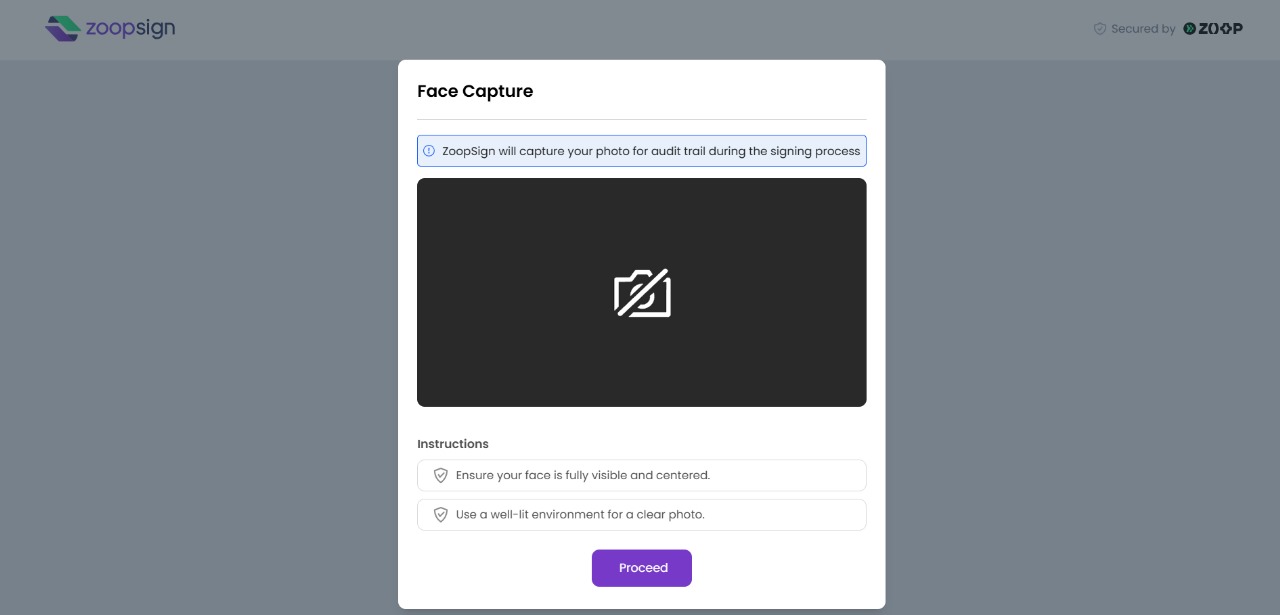
The ZoopSign portal requests additional verification, such as a live photo capture for audit trails and location sharing for regulatory compliance. Make sure you are in a well-lit environment and allow camera permissions.
6. Review Agreement & Student Details
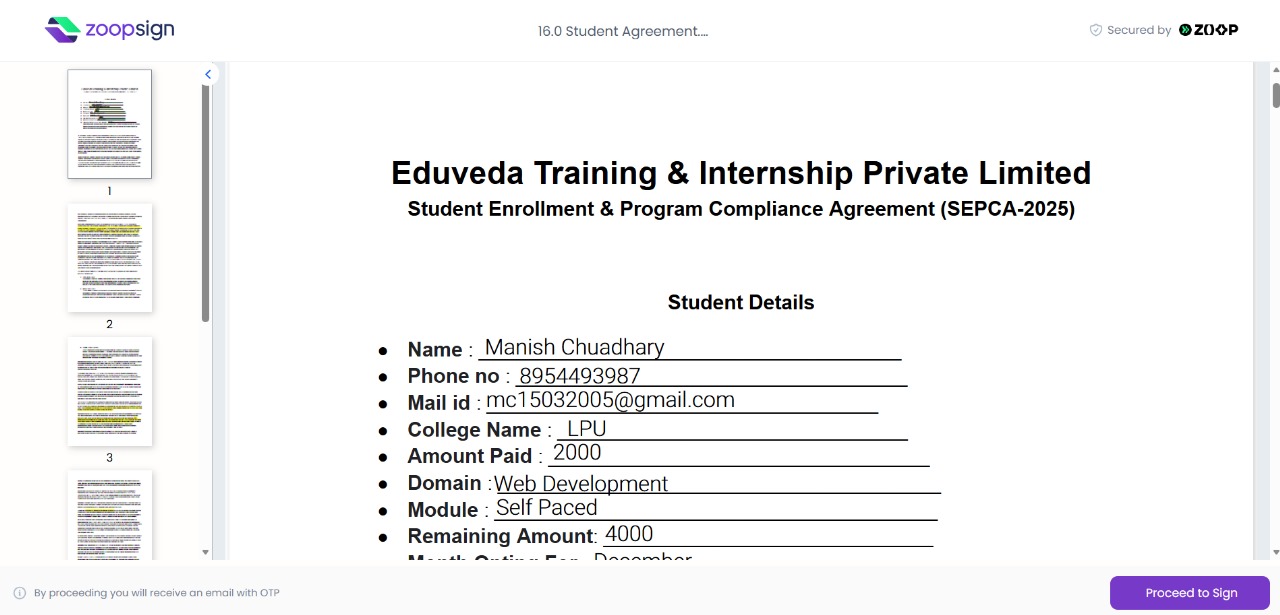
Next, the platform displays the full agreement, including personal and program details: name, contact info, college, domain, payment status, program details, and batch session info. Read the agreement carefully before proceeding .
7. Select Mode of Signature
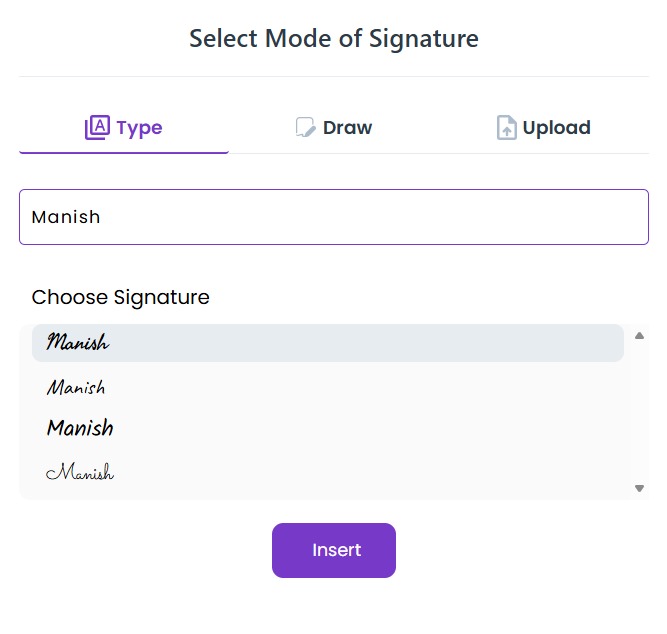
Students select how to sign: either by typing the name, drawing a signature, or uploading an image of a handwritten signature. ZoopSign offers several font styles for typed signatures as well.

8. Finalize and Download
Once the digital signature is placed, ZoopSign indicates “Document Signed Successfully.” You may download your signed agreement for record-keeping and future verification with Eduveda .
Related insights
More from General assistance
 1 min read
General assistance
What Is the Eduveda Training and Internship Program All About?
Discover the Eduveda Training & Internship Program The Eduveda training and internship program, offered in collaboration with top firms like AWS, provides high-impact, 2-mon
Manish Chaudhary
Nov 18, 2025
 1 min read
General assistance
How to enroll for mentors in training module
How to Enroll for Mentors on Eduveda Academy What is the Mentorship Program? Eduveda’s mentorship program connects students enrolled in courses with industry experts for personal
Manish Chaudhary
Nov 18, 2025